01
Open the website you want to measure.
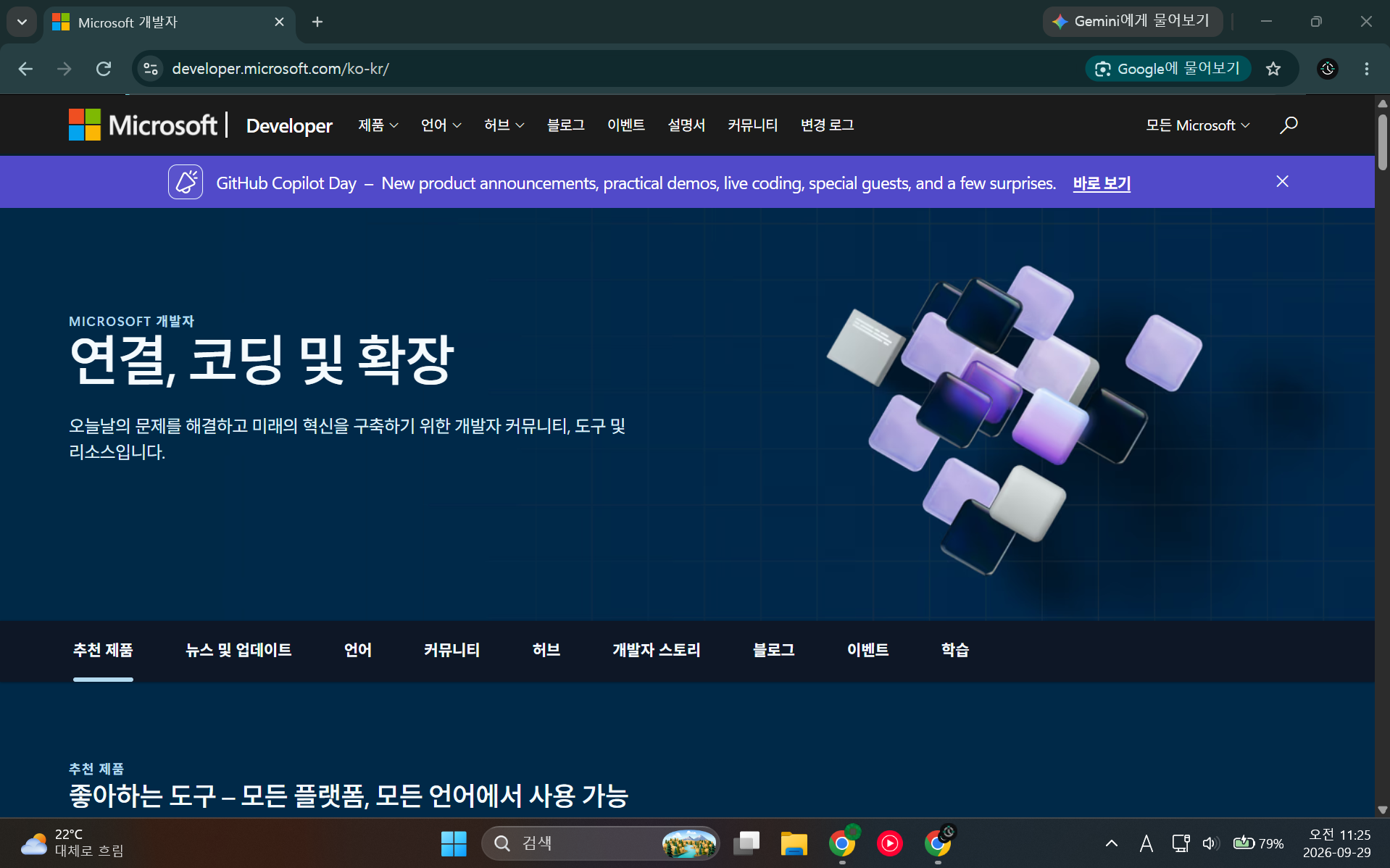
Open the website whose server time you want to check. This can be a ticketing site, course-registration page, reservation service, or another time-sensitive website.
DONGCLOCK BASIC GUIDE
Copy the address of the website you want to check, paste it into DongClock Basic, and start a measurement. The screenshots below follow the actual workflow from opening the website to completing a measurement session.
Open the website whose server time you want to check. This can be a ticketing site, course-registration page, reservation service, or another time-sensitive website.
The HTTP or HTTPS address shown in the browser address bar is the target you will give to DongClock.
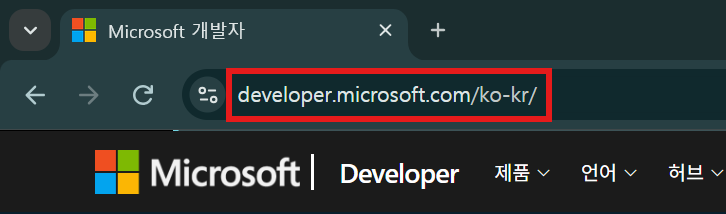
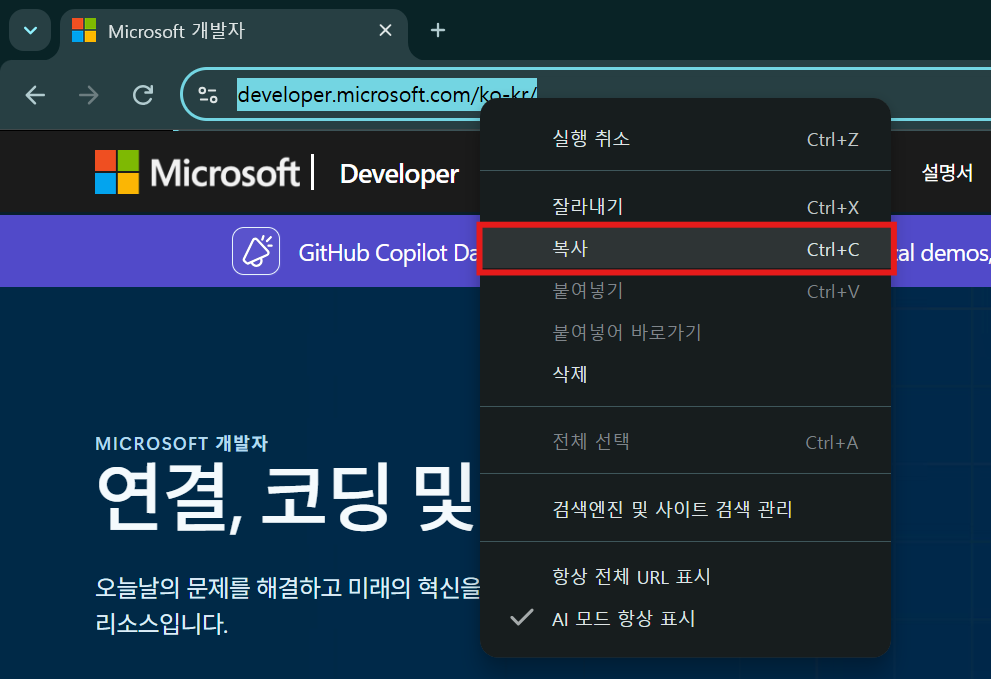
Select the full URL in the address bar and copy it. DongClock can use that address directly in the server-address field.
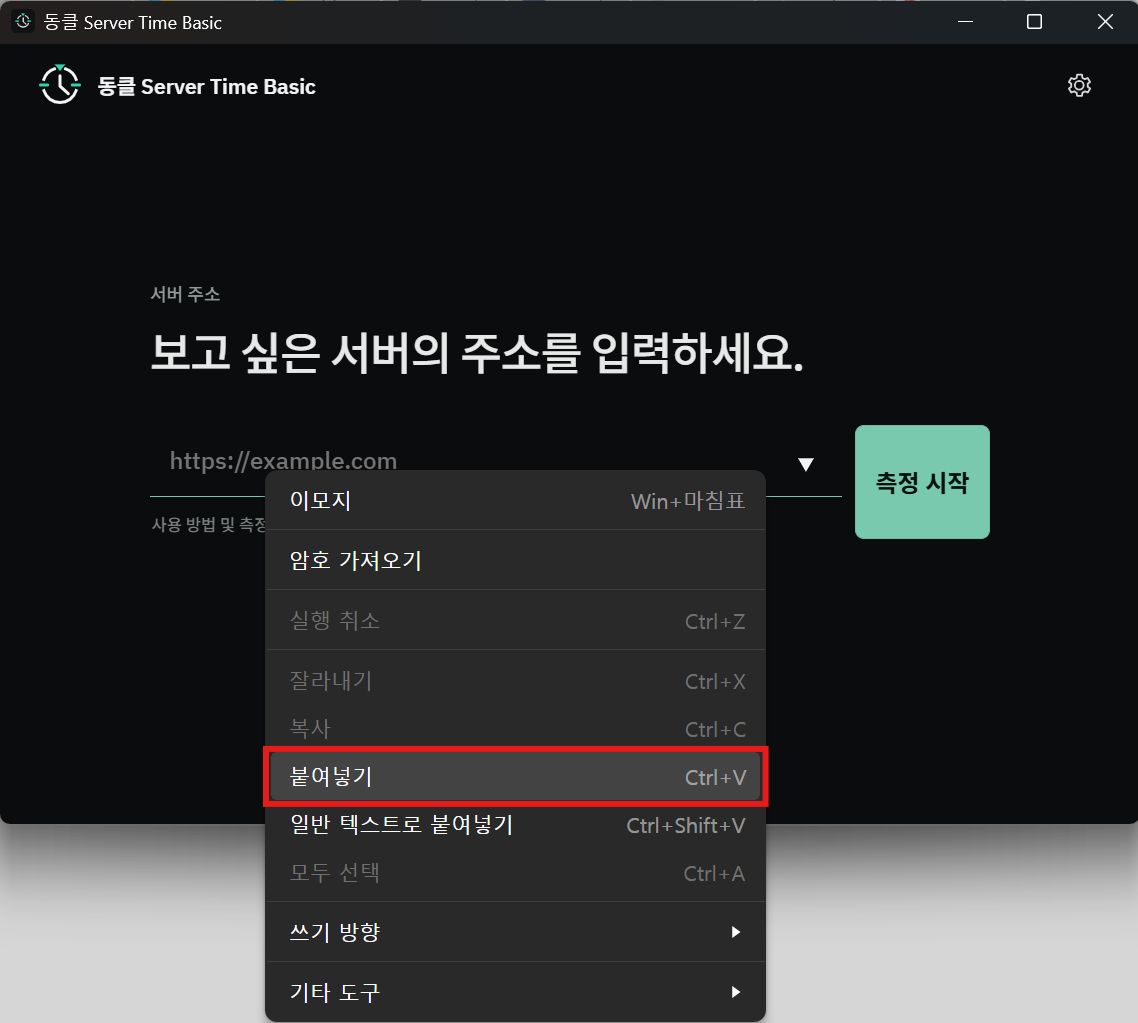
Open DongClock Basic and paste the copied URL into the server-address field. You can also type the address manually.
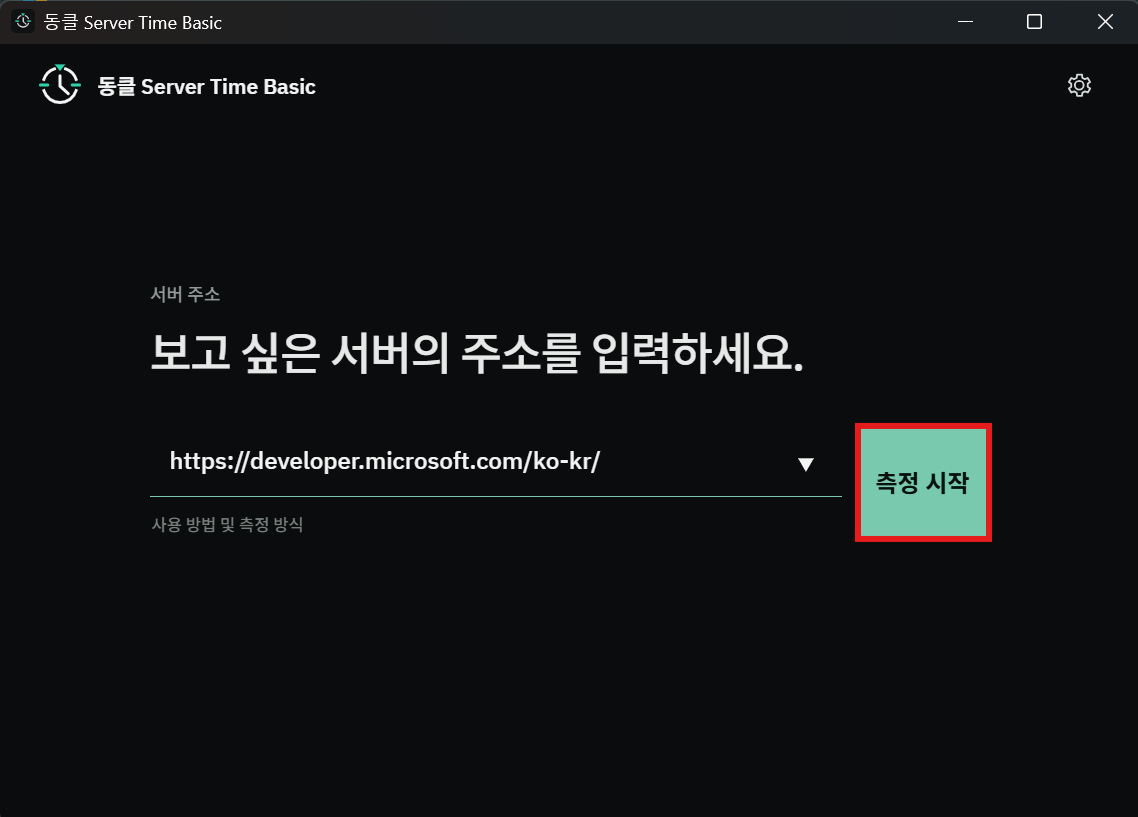
After checking the address, select Start Measurement. DongClock begins observing the website's HTTP responses and network round-trip timing.
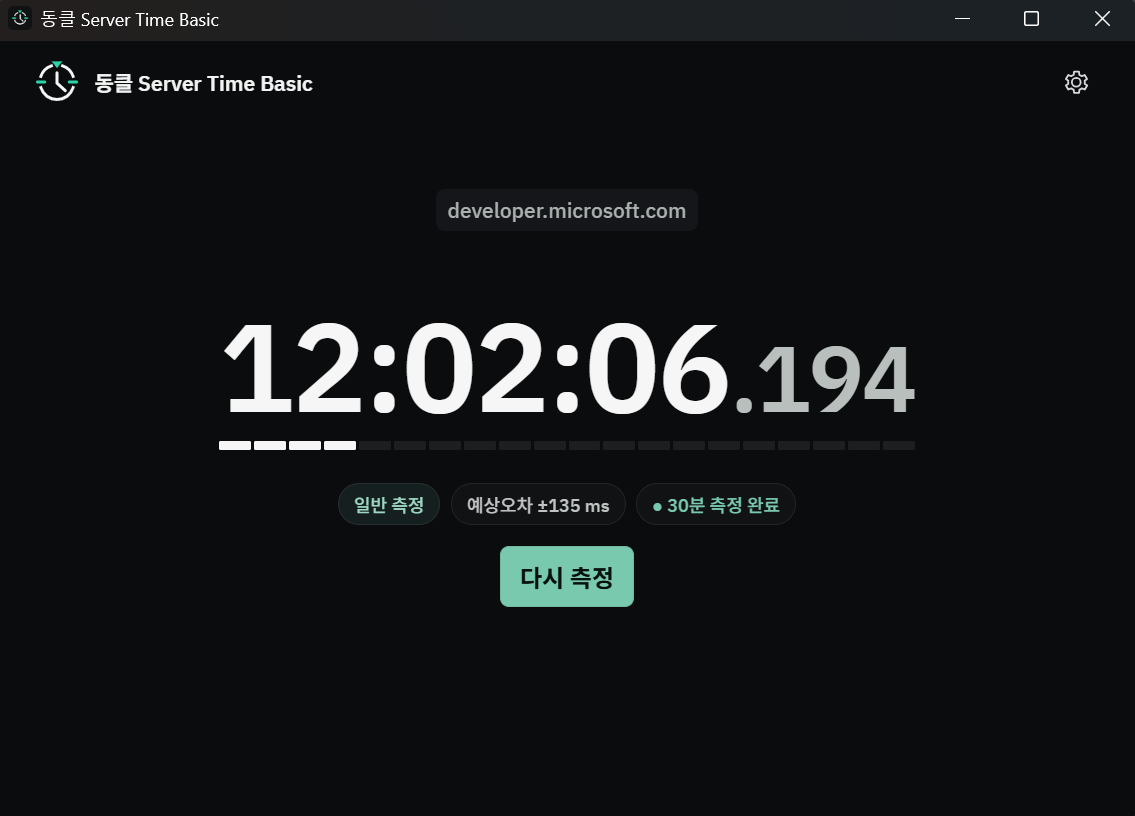
DongClock first gathers multiple observations and updates its server-time estimate and estimated error. It is better to watch the measurement for a while rather than rely on the first displayed value.
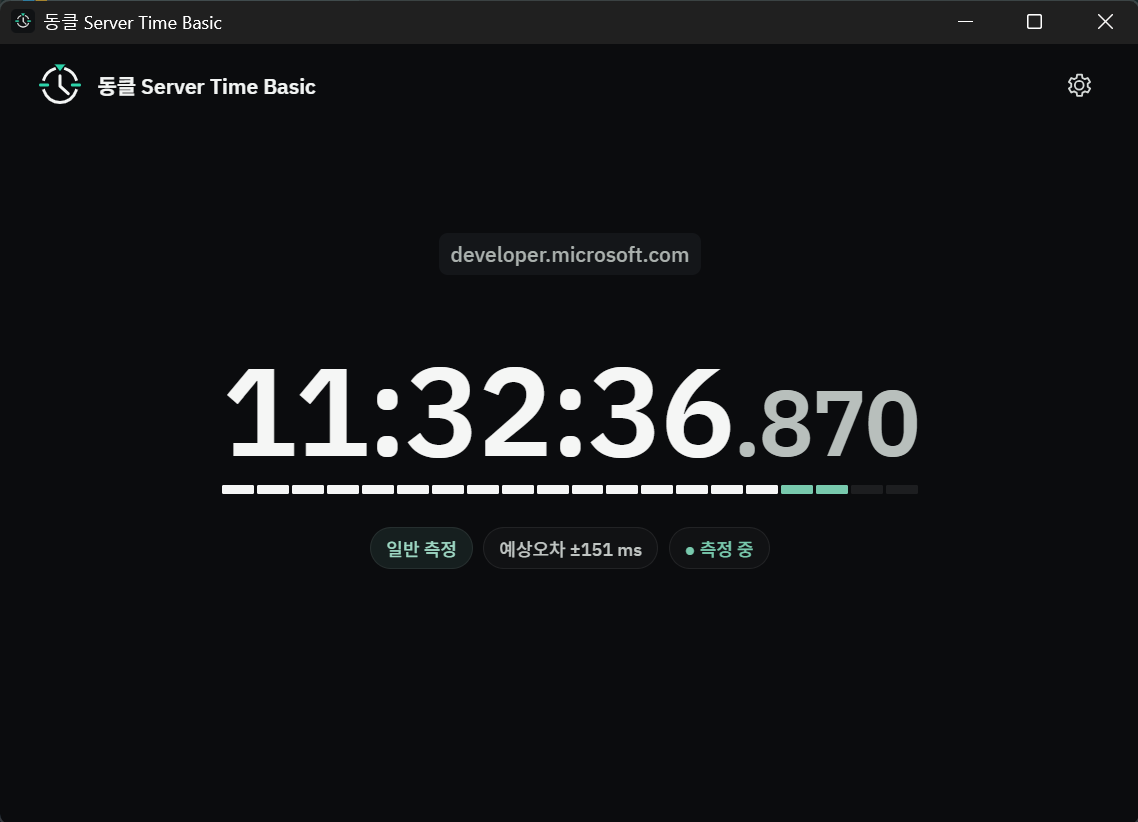
While measurement continues, you can monitor the displayed server time, current state, and estimated error. Values may continue to adjust depending on network conditions and the target server's response behavior.
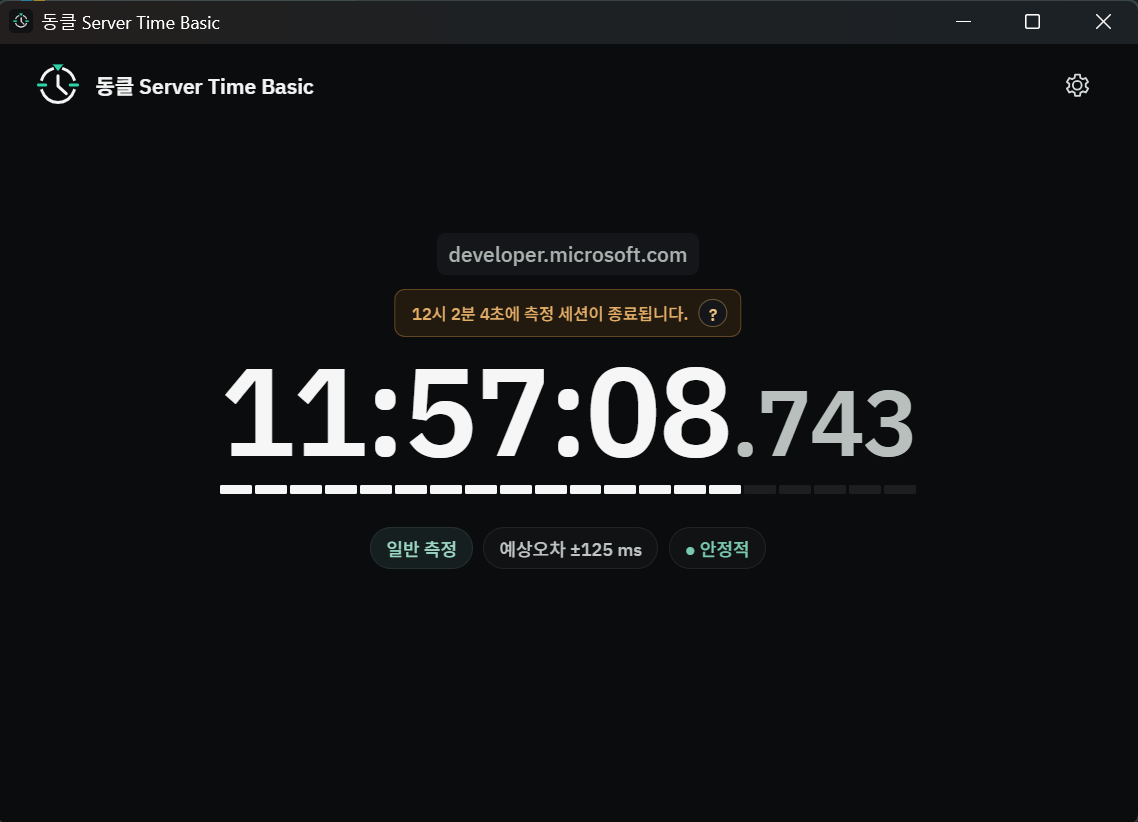
When the Basic measurement session ends, review the final state. Select Measure Again if you want to start a fresh measurement session.